
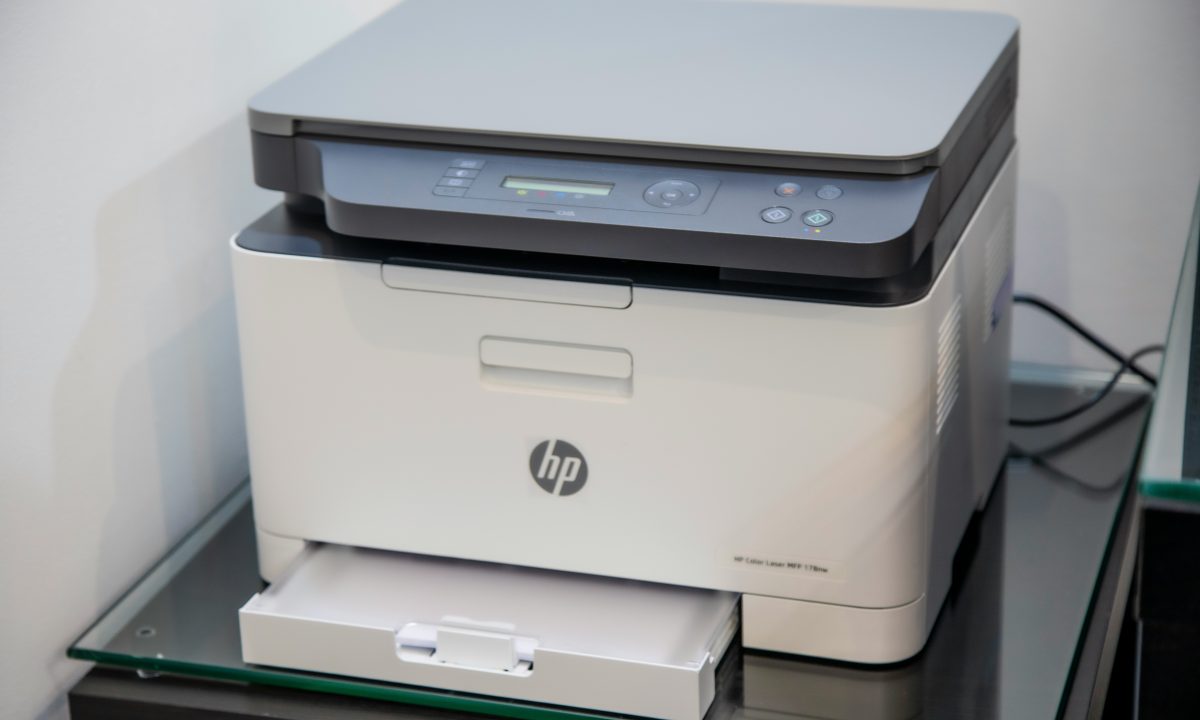
Microsoft’s October 13, 2026 Windows 11 security update includes a fix for a printing problem that could affect some applications and devices using RAW or Generic Text Only printer drivers. The issue appeared after installation of the August 2026 security update, and Microsoft lists its resolution in update KB5127648.
The clarification is important for administrators who support receipt printers, label printers, legacy business applications or other devices that use a specialized text-oriented print path. It is not a statement that every Windows 11 printing problem has been fixed. The documented scope is narrower: printing could fail in some applications and on devices using the specified driver types after the August update.
What the October update addresses
KB5127648 applies to Windows 11 versions 24H2, 25H2 and 26H2. Microsoft’s release notes identify a printing regression involving RAW and Generic Text Only drivers. These driver configurations are often used in environments where an application sends formatted text or command data to a device rather than relying on a conventional page-description workflow.
That distinction matters in operational settings. A point-of-sale system, warehouse application or back-office tool may depend on a printer that has been configured for a particular driver and port combination. If printing stops after an operating-system update, replacing the printer or changing the application configuration may be unnecessary if the underlying issue is already addressed by a cumulative Windows update.
How to check whether the fix is installed
Start by checking the Windows update history on an affected computer. Open Settings, go to Windows Update and review Update history for the October 13, 2026 cumulative update KB5127648 or a later cumulative update that includes its fixes. The exact build number can also help an administrator confirm which update level is installed.
If the update is missing, use Windows Update or the organization’s normal deployment system to install the appropriate cumulative update for that Windows version. Restart the computer when prompted, then test the application that originally failed. If the printer is used by a business-critical system, test with a small number of devices before deploying the update across a larger fleet.
Retest the complete print path
A successful test should go beyond checking whether the printer appears online. Send a job from the application that was affected, confirm that the output is complete and correctly formatted, and check whether the application reports an error. Where appropriate, compare that result with a test page or a small job from another application. A printer that works from one program but not another may point to an application or driver-path issue rather than a general hardware failure.
Administrators should also review the print queue for jobs that were left behind during the outage. Cancel stale jobs only when it is safe to do so, then submit a fresh test. If the queue remains stuck after the update, check the configured printer port, the selected driver and any application-specific settings before removing and reinstalling the device.
What to do if printing still fails
KB5127648 addresses the specific failure described in Microsoft’s release notes. It does not guarantee a fix for unrelated problems such as network interruptions, depleted supplies, incorrect paper settings, application crashes or a damaged printer configuration.
If the issue continues, record the Windows version and build, the driver name, the connection type, the affected application and the exact error message. Compare the results across another workstation or another printer if possible. A failure limited to one application may require help from that software vendor, while a device that cannot print from any computer may need attention from the printer manufacturer or service provider.
For managed environments, keep a list of devices that rely on RAW or Generic Text Only drivers. Those configurations can be easy to overlook because they may be tied to older line-of-business software or specialized peripherals. Documenting them makes it easier to test future Windows updates without interrupting critical workflows.
A targeted fix, not a reason to skip testing
The October update gives affected users a clear starting point: verify that KB5127648 or a later update is installed, restart and retest the original job. IT teams should still follow their normal update-testing process, especially where receipts, shipping labels or other operational documents must print reliably throughout the day.
Estimated reading time: 5 minutes.