
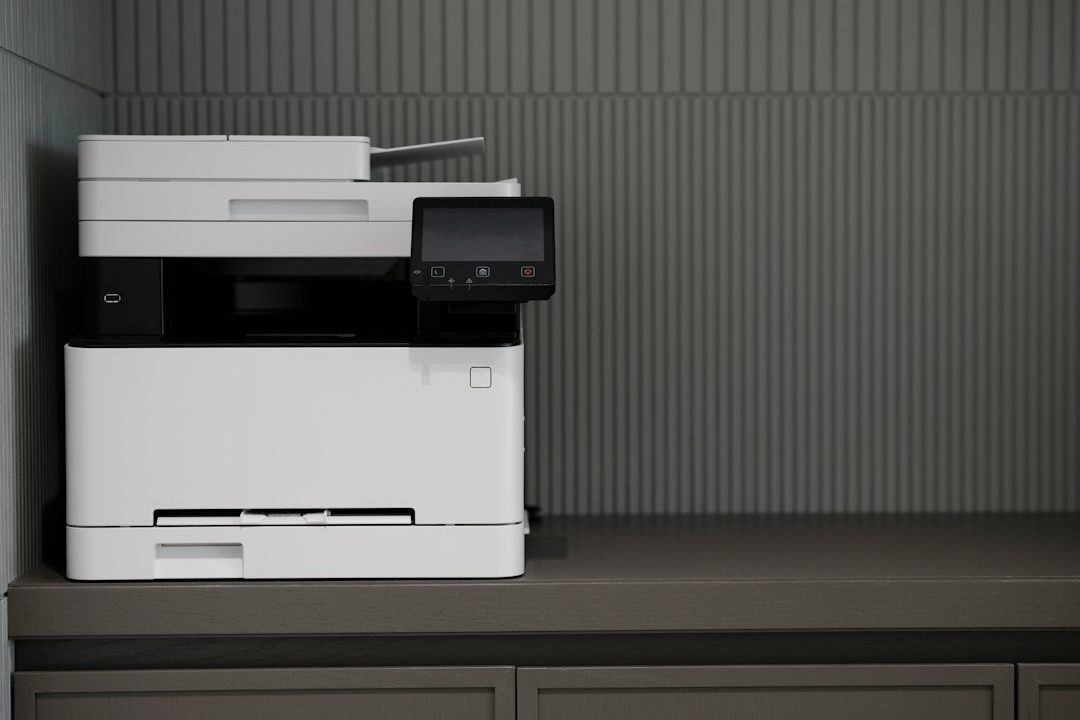
A print job that remains in Pending status can be difficult to diagnose because the computer, cloud service and physical printer may each appear to be working normally. In a cloud-managed environment such as Microsoft Universal Print, a job must pass through several stages before the printer receives it. A delay or communication failure at any stage can leave a document waiting in the queue.
Understand where the job is waiting
First determine whether the job is stuck on the user’s computer, in the cloud print service or at the printer. Ask whether other users can print to the same device and whether the problem affects one document or every job. If only one user is affected, check that person’s sign-in status, assigned printer and permissions. If every user is affected, focus on the printer connection, connector or service status.
Microsoft has acknowledged separate printing issues affecting some Universal Print users and certain Windows 11 printer configurations. In one reported case, some Konica Minolta devices could stop retrieving jobs from Universal Print, leaving jobs Pending. A separate Windows issue affected some previously installed printers after an operating-system update. These reports do not mean every pending job has the same cause; confirm whether the affected model and software versions match the vendor’s notice.
Check the printer itself
Look at the printer control panel before changing anything on the computer. Confirm that the device is powered on, shows Ready and has no paper, toner, ink, cover or maintenance warning. Check that the network icon or status page indicates a connection. If the device has a configuration report, print it locally if possible and note its IP address.
Do not repeatedly power-cycle a printer that is processing a firmware update or a large job. If the device is unresponsive, follow the model’s documented restart procedure. For a network printer, confirm that its IP address has not changed unexpectedly and that it can reach the network services required by the print environment.
Inspect the Windows queue
On the affected computer, open Settings, then Bluetooth & devices, Printers & scanners, and select the relevant printer. Open the queue and check whether the job is paused, offline or reporting an error. If the queue contains several failed documents, note their names and status before removing anything. Cancel only the jobs that are safe to discard; a shared queue may contain work submitted by other users.
Check that the correct printer is selected in the application. Some programs remember an old queue even after an administrator replaces the device. If the printer was recently reinstalled, confirm that users are not sending jobs to a duplicate or obsolete entry.
Verify cloud service and connector status
For Universal Print, ask the administrator to review the printer registration, connector health and service status. Confirm that the printer remains assigned to the intended users or groups. If a connector computer is involved, verify that it is powered on, connected to the network and running the required service. Check official Microsoft service health and support notices before making broad changes.
Network security controls can also interrupt communication. A recent firewall change, proxy update or DNS problem may prevent a connector from reaching the cloud service. Compare the current network configuration with the documented requirements rather than opening broad firewall access. Record the time of the failure and any relevant event-log messages for the administrator.
Apply changes one at a time
If the device is reachable and the cloud service is healthy, try a small test job from another workstation. If that works, focus on the original computer’s queue, permissions and driver. If it fails from every workstation, investigate the printer registration, connector and device network connection.
Do not delete every printer driver or clear system folders as a first response. A driver reinstall may be appropriate when the issue is limited to one computer, but use the manufacturer’s supported package and document the existing configuration. After a Windows update, check the official update history and printer vendor guidance for a known issue or approved workaround.
When to escalate
Contact IT or the printer provider if jobs remain Pending across multiple users, the connector repeatedly disconnects, the device cannot retrieve cloud jobs or the issue began after a managed update. Provide the printer model, Windows build, driver and firmware versions, affected user scope, timestamps and steps already attempted. This information helps support teams isolate the failing stage without repeating basic checks.
Quick troubleshooting checklist
- Determine whether the issue affects one user, one printer or the whole office.
- Check printer Ready status, network connection and error messages.
- Inspect the Windows queue and confirm the correct printer is selected.
- Ask the administrator to review Universal Print and connector health.
- Check recent firewall, DNS, Windows and driver changes.
- Test one change at a time and record the outcome.
Pending jobs are symptoms, not diagnoses. A structured check from the computer to the cloud service and then to the physical printer is usually faster and safer than immediately reinstalling everything.
Reading time: 5–6 minutes.