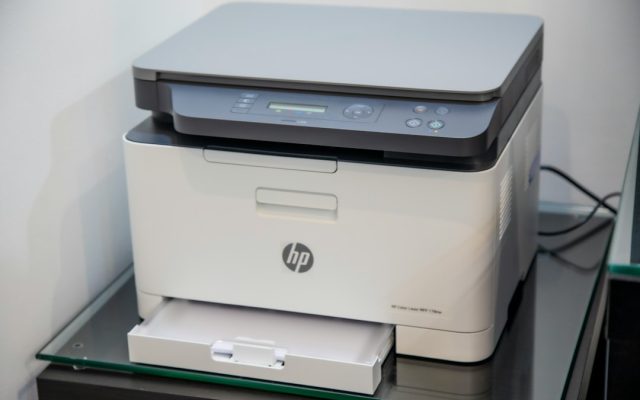
Upgrading a home or office network to Wi-Fi 7 can improve capacity and performance for newer phones and computers, but it does not automatically make every connected device compatible with the new router settings. Printers are a common source of confusion: some models support only particular Wi-Fi bands or security modes, and a router configured for newer clients may use options an older printer cannot negotiate.
Router makers are already documenting compatibility steps for older devices. ASUS notes that some legacy clients may not work with Wi-Fi 7 mode or GCMP-256 encryption and suggests options such as a compatible IoT network or adjusting wireless settings. Canon’s printer networking guidance also warns that WPA3 can affect WPS setup on some models and that certain enterprise security modes are not supported by every printer. The exact limits depend on the printer and router model, so checking specifications is more reliable than assuming all wireless printers behave alike.
Start with the printer’s supported Wi-Fi bands
Many printers designed for home and small-office use connect through 2.4 GHz Wi-Fi. Some newer models also support 5 GHz, while 6 GHz requires compatible hardware and is not a universal printer feature. A Wi-Fi 7 router may broadcast several bands, but a printer cannot join a band its wireless adapter does not support.
Check the printer’s manual or specifications for the supported bands before changing the router. If the router has a combined network name for several bands, temporarily create a separate 2.4 GHz network for the printer if the router allows it. This can make the connection process clearer and avoid band-steering behavior that some devices handle poorly.
Review WPA3 and mixed security modes
WPA3 improves wireless security, but older printer firmware may not support every WPA3 configuration. Canon notes that WPS may not work when the router’s encryption settings include WPA3 on some models; it recommends using the printer’s manual wireless connection method or adjusting the router’s encryption setting. Canon also lists enterprise security modes that are unsupported by some printers, while noting that certain models do support them.
ASUS separately warns that some older clients may not be compatible with Wi-Fi 7 mode or GCMP-256. Its suggested options include disabling Wi-Fi 7 mode for compatibility, changing the relevant encryption setting to AES, or using a dedicated IoT wireless network with 2.4 GHz and 5 GHz plus WPA2-Personal AES. These are router-specific recommendations, not universal settings for every brand.
Use a separate printer or IoT network carefully
A dedicated IoT network can keep older devices on settings they support without weakening the main network for newer devices. If you create one, choose a strong unique password, keep router firmware current and avoid obsolete security such as WEP or TKIP. Use WPA2-Personal with AES only when that is the strongest mode supported by the printer and router combination, and follow your organization’s security policy in a business environment.
Network separation also has a trade-off. Some guest and IoT networks block communication between wireless clients. That can prevent a laptop or phone from discovering a printer even when both show a successful Wi-Fi connection. Look for client isolation, device isolation or access-control settings, and allow only the necessary local printing traffic rather than opening the network broadly.
Check mesh steering and printer discovery
Canon’s network guidance warns that some mesh configurations using the same network name for 2.4 GHz and 5 GHz or 6 GHz can prevent printing on certain models. Where a printer repeatedly disappears, test with separate network names for the supported bands and connect the computer to the same network as the printer. If the router offers band steering, temporarily turn it off for the test.
Also check whether MAC-address filtering is enabled and whether the printer has been allowed. A privacy separator or client-isolation feature can block printing even when the printer is connected to the access point. These settings are useful in some public networks, but they can interfere with normal discovery on a trusted home or office LAN.
A safe connection checklist
- Confirm the printer’s supported Wi-Fi bands and security modes in its manual.
- Update printer firmware and the router firmware before troubleshooting.
- Create a compatible 2.4 GHz or 5 GHz SSID if the printer cannot join the main Wi-Fi 7 network.
- Use the printer’s manual wireless setup wizard if WPS fails with WPA3 enabled.
- Check client isolation, privacy separator and MAC filtering if the printer connects but cannot be found.
- Connect the computer or phone to the same local network and print a test page.
Do not weaken the whole network to fix one printer
The best solution is usually a narrowly scoped compatibility network, not turning off modern security for every device. Keep the primary Wi-Fi network on the strongest security mode supported by current equipment. Place older printers on a separate, controlled network where necessary, and restrict access to trusted devices. If the printer cannot support the router’s security requirements even on a dedicated network, ask the manufacturer whether a firmware update or supported wireless adapter is available.
Wi-Fi 7 does not make older printers obsolete, but it makes it more important to understand the relationship between band support, authentication and network isolation. Checking those three areas before resetting the printer can resolve many connection problems while preserving a secure network for the rest of the household or office.