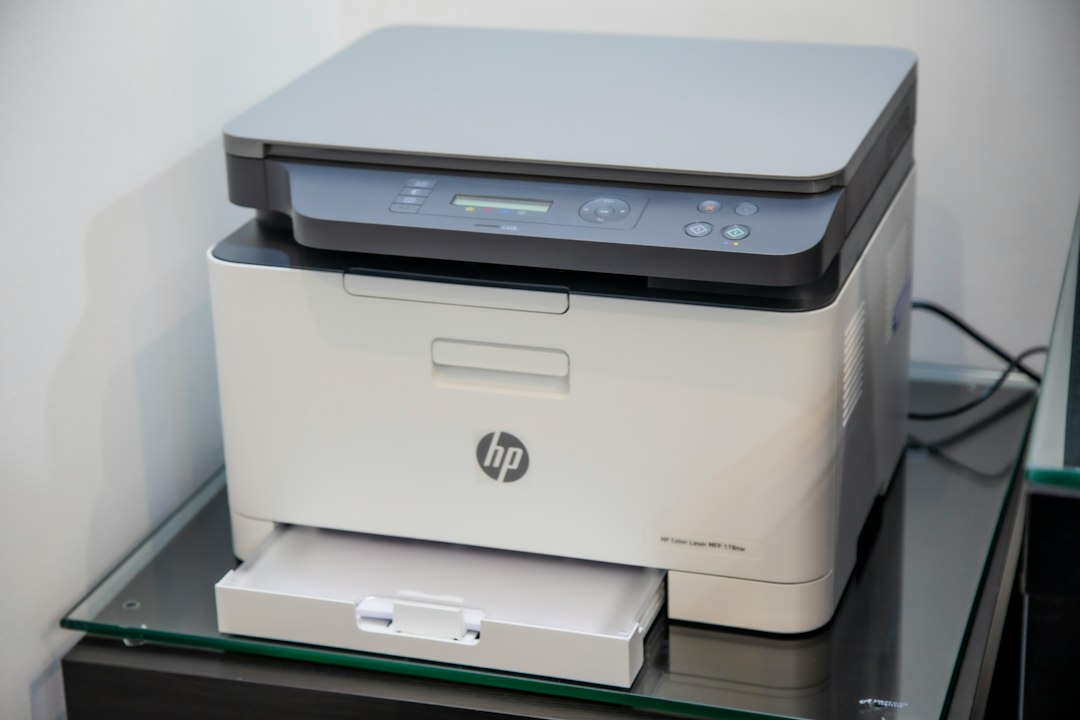
A wireless printer is convenient when several computers or phones need to use one device, but a connection that drops repeatedly can interrupt work. The printer may be too far from the access point, connected to the wrong network or affected by a router setting that prevents devices from communicating. A structured check can help identify the cause without weakening network security.
Confirm the printer is on the intended network
Use the printer’s control panel or network report to check its Wi-Fi name and connection status. Compare the network name with the one used by the computer or mobile device. Some homes and offices have separate main and guest networks. Guest networks often block communication between wireless clients, so a printer connected there may be invisible to other devices even though it has internet access.
For a shared printer, use the trusted network approved by the network owner. In a business, IT may provide a dedicated printer network or VLAN with controlled access. Do not move a managed printer between networks without checking the organization’s policy.
Check wireless band compatibility
Printers differ in the Wi-Fi bands and security modes they support. Some older models work only on 2.4 GHz, while newer routers may combine 2.4 GHz and 5 GHz under one network name. Read the printer manual before changing router settings. If setup fails, follow the manufacturer’s supported method for connecting the device rather than disabling encryption or creating an open network.
Also check whether the router has recently changed its network name, password or security mode. A printer may retain old credentials after a router replacement. Re-enter the correct credentials using the documented setup process and confirm that the printer reports a successful connection.
Improve signal quality
Place the printer within reliable range of the access point. Thick walls, metal cabinets, floors and large appliances can weaken the signal. Avoid placing the printer directly beside equipment that may cause interference. If the signal is marginal, moving the printer or access point a short distance may help more than repeatedly reinstalling the software.
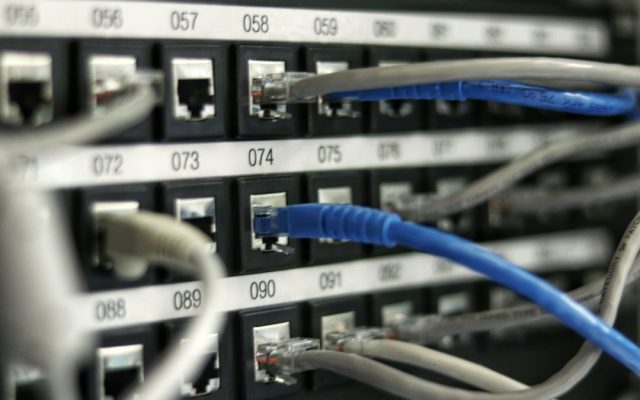
For a fixed office device that handles frequent jobs, Ethernet may be more dependable than Wi-Fi. A wired connection also makes it easier for administrators to monitor the device. Choose the connection that best fits the location and workload, not simply the one that requires the fewest cables.
Check addressing and discovery
A router may assign a different IP address to a printer after a restart or lease renewal. If the computer is configured to use an old address, the printer can appear offline. Print a fresh network configuration page and compare the current address with the port or printer entry on the computer. In a small office, an administrator may configure a DHCP reservation so the printer receives a consistent address. Avoid manually choosing an address that could conflict with another device.
Network discovery and firewall rules can also affect visibility. Confirm that the computer is on a network profile that permits the required local discovery and printing traffic. Do not turn off the firewall entirely. In managed environments, request the specific rule from IT.
Update carefully and test after each change
Check the printer maker’s support page for firmware updates for the exact model. Read the release notes and install updates during a quiet period, using stable power. Keep router firmware current as well, following the router manufacturer’s process. Do not interrupt an update once it begins.
After changing a network setting, print a short test page from one computer and then another authorized device. Restart the printer normally and confirm that it reconnects. If only one computer still fails, inspect that computer’s queue and driver rather than changing the router again.
Keep the wireless printer secure
Change default administrator credentials, restrict access to the management interface and disable unused services. Do not forward printer management ports to the public internet. If remote access is required, use an approved VPN or managed service. Review cloud-printing features before sending confidential documents through them.
A stable wireless printer depends on compatible settings, good signal quality and predictable network addressing. Check those basics in order, preserve network security and test after every adjustment. If the device remains unreliable, record its model, firmware, network status and error messages before contacting the manufacturer or network administrator.
Use a simple isolation test
When a wireless printer disconnects, avoid changing several router options at once. First, place a laptop or phone near the printer and confirm that it remains connected to the same trusted network. Next, check the printer’s status page and compare its signal or address information with the router’s connected-device list, if available. Finally, test a small print job from one computer. This sequence helps separate weak signal, printer authentication and computer discovery problems.
If the printer works reliably when it is close to the router but disconnects in its normal location, signal coverage is a likely factor. Consider moving the access point, adjusting its placement or asking the network administrator about a supported access point or mesh arrangement. Avoid placing a wireless extender where it already receives a weak signal; the extender needs a stable connection to the main network to help.
Be careful with router security settings
Do not switch to an open wireless network, disable encryption or turn off the firewall just to make printer discovery work. Those changes can expose every device on the network. If a security mode or client-isolation feature appears incompatible, check the printer manual and router documentation or ask the network administrator to define a limited rule. In an office, document the printer’s approved network segment and access requirements so future router changes do not break printing unexpectedly.
Reading time: 4–5 minutes.