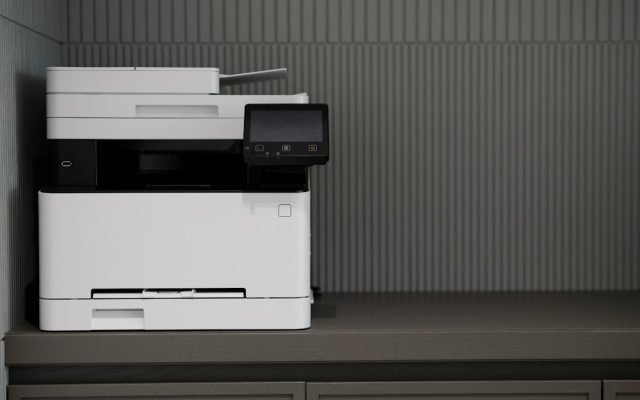
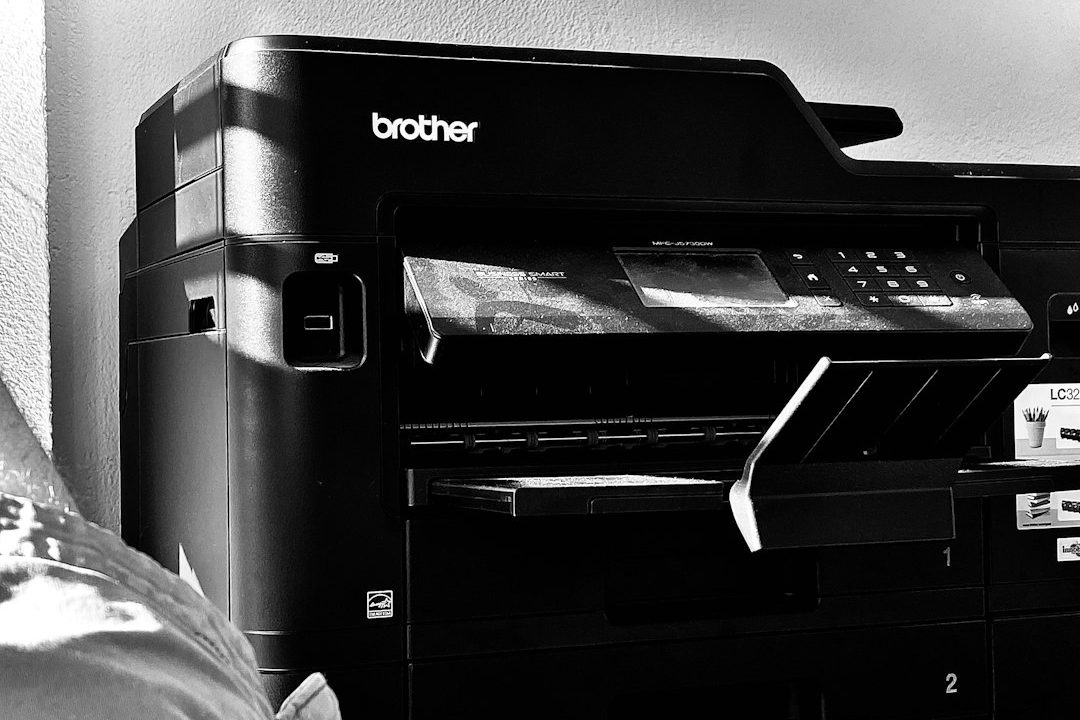
A printer that suddenly refuses a document can make a Windows update look like the obvious cause. In November 2026, Microsoft documented printing-related changes in its monthly security updates, including a fix for an error that could prevent some Active Directory printers from being added. Microsoft also described a separate issue involving documents with image objects whose height or width is zero at the selected print resolution. Knowing which symptom you have can save time and prevent unnecessary driver removal.
Separate printer discovery from print-job failure
First identify what is failing. If Windows cannot add a shared printer and displays error 87, the problem is different from a job that enters the queue but never reaches the device. If the printer appears normally but one particular document fails, investigate the document and application before reinstalling the printer.
Ask whether other users can print to the same device, whether other documents work and whether the problem started immediately after an update. Record the exact error message, Windows version, printer model and time of failure. These details help distinguish a device fault from a client, queue or update issue.
Check the November update notes
Microsoft’s November 10, 2026 update documentation lists a fix for an issue in which adding a printer published in Active Directory through Settings could fail with error 87, “The parameter is incorrect.” Microsoft says the issue was introduced by the October 2026 update and generally did not affect printers that were already installed and printing.
If this matches your situation, check whether the computer has received the relevant November cumulative update for its Windows release. In an organization, ask IT to confirm the update status and review how the shared printer is published. Avoid deleting a working shared queue before confirming the problem is actually printer discovery.
Investigate documents that fail only when printed
Microsoft has also described a separate problem in which printing may fail for documents containing images with a zero height or width at the selected print resolution. Such image objects can be inserted by document-generation tools or used as invisible layout anchors and watermarks. The page may look normal on screen even though the document contains an unusual image object.
Try printing a simple text-only page. If that works, save a copy of the affected document and export it to PDF using the application’s supported export function. Print the PDF as a test. If the PDF works, inspect the original document for unusual image placeholders, watermarks or generated objects. Do not overwrite the only copy while experimenting.
Work through the basic printer checks
Look at the printer’s control panel and confirm it is powered on, online and showing Ready. Check paper, toner or ink, open covers and any maintenance warnings. For a network printer, confirm that it is connected to the intended network and has not received an unexpected IP address change.
On Windows, open Settings, then Bluetooth & devices, Printers & scanners. Select the device and open its queue. Check whether the job is paused, offline or waiting behind another document. If a queue contains several failed jobs, note their names before cancelling anything; a shared queue may contain work submitted by other people.
Change one thing at a time
Restarting the printer, reinstalling the driver and clearing the queue all change the environment, so avoid doing everything at once. Begin with a small test page. If only one workstation fails, check its driver, application and recent updates. If every workstation fails, investigate the printer, network, print server or shared queue.
Download driver packages only from the printer manufacturer’s official support page. Match the full model number and Windows version. Do not use generic driver updater utilities or delete system folders. If the issue began after a managed update, ask IT to check the vendor and Microsoft support notes before rolling back security software.
When to escalate
Contact the administrator or printer provider if the issue affects multiple users, a shared queue cannot be added, the printer repeatedly disconnects or a device reports a hardware error. Provide the exact Windows build, update history, printer model, driver and firmware versions, sample document type and steps already tested. For a document-specific failure, share a sanitized copy if your organization’s policy permits it.
Quick troubleshooting checklist
- Identify whether the failure is printer discovery, queue delivery or one document.
- Check the exact error and Windows update history.
- Install the relevant November cumulative update through approved channels.
- Test a text-only page and a PDF to isolate document-specific issues.
- Check printer Ready status, queue state and network connection.
- Change one variable at a time and record the result.
Printing errors are easier to resolve when the symptom is matched to the right layer. Start with the simplest test, use Microsoft’s update notes as a guide and avoid broad driver changes until the evidence points to them.
Reading time: 5–6 minutes.