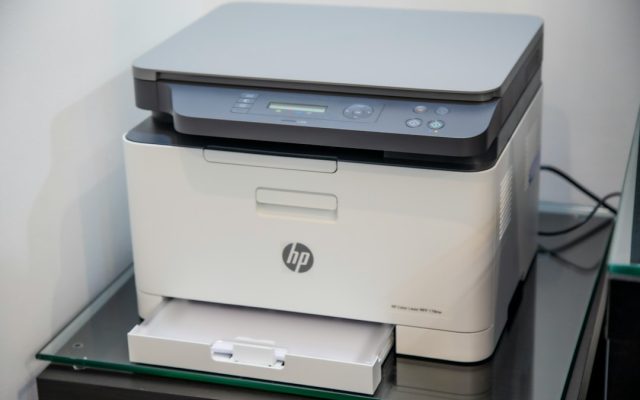
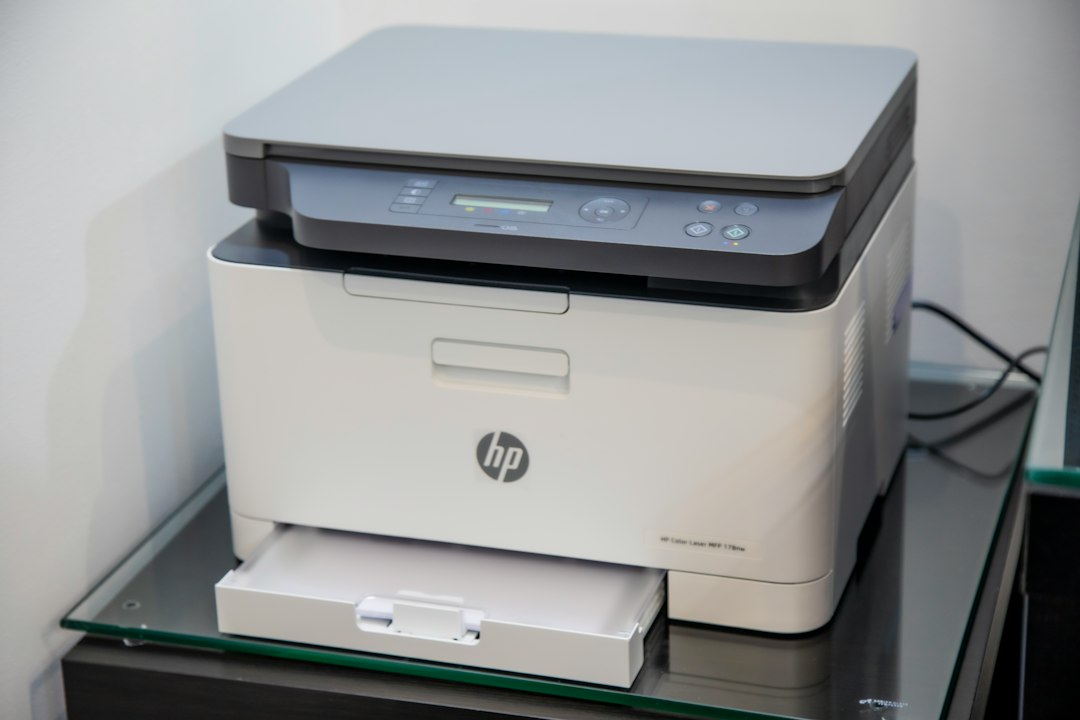
Setting up a printer on a Windows computer is becoming less dependent on traditional manufacturer driver packages. Microsoft is moving supported devices toward a standards-based approach called Windows Ready Print, built around Internet Printing Protocol (IPP) and the driver included with Windows. The change is intended to make installation more consistent, but it also means users should check compatibility before replacing a working setup or buying a new printer.
What Windows Ready Print changes
For years, many printers required a model-specific driver downloaded from the manufacturer. That package could provide advanced options such as borderless printing, finishing, color profiles, status monitoring and scanning utilities. Windows Ready Print aims to simplify the basic printing path by using standards-based communication and an inbox IPP class driver where a device supports it.
Microsoft’s published transition plan says new printer installations began preferring Windows Ready Print in July 2026 when supported. This does not mean every older printer suddenly stops working or that every vendor utility is obsolete. Specialized devices and advanced features may still need software from the manufacturer. The practical question is whether the standard driver exposes the functions you actually use.
Check compatibility before connecting
Start with the full model number, including any regional suffix. Then visit the printer maker’s official support page and check the supported Windows versions, connection types and available feature packages. Look for explicit references to IPP, Mopria or Windows class-driver support, but do not assume that a model in the same product family has identical capabilities.
Make a short list of the features that matter: duplex printing, multiple paper trays, photo or borderless output, secure print release, color management and scanning. A basic driver may handle ordinary documents perfectly while leaving some advanced controls unavailable. If the printer is shared by a business, ask the administrator whether a managed driver or print server is required before changing the installation method.
Choose the right installation path
For a home printer, connect it to the intended Wi-Fi network or use USB when the device is dedicated to one computer. For an office printer, Ethernet is often easier to manage because it gives the device a stable wired connection. Once the printer is online, open Settings, select Bluetooth & devices, then Printers & scanners and choose Add device.
When Windows discovers the printer, review the name and connection details before accepting the installation. If Windows offers a standard driver and the printer supports the required functions, it is a reasonable first choice. If the model requires a vendor package for scanning, finishing or color control, download that package directly from the manufacturer’s support page. Avoid third-party driver download sites and bundled installers.
Understand the November 2026 printer fix
Recent Windows updates are another reason to check release notes rather than treating every printing problem as a driver failure. Microsoft’s November 10 security updates document a fix for an issue in which adding a printer published through Active Directory could fail with error 87. Microsoft says the problem was introduced by the October 2026 update and generally did not affect printers that were already installed and printing normally.
If a new office printer cannot be added and the computer displays error 87, confirm the Windows build and whether the November cumulative update is installed. In a managed environment, ask IT to verify update deployment and Active Directory printer publication. Do not remove working queues or reinstall every driver as a first response.
Verify the complete setup
After installation, print a one-page test document containing text, a small image and a table. Check orientation, paper size, color, duplex behavior and whether the correct tray is selected. If scanning is part of the workflow, test it separately because print discovery does not guarantee that scan software has been installed.
For a network device, record its location, model, IP address or hostname and the driver type. On a shared printer, confirm that another authorized user can print as well. Keep a copy of the manufacturer’s setup guide and note any optional features that require an additional package.
When to use the manufacturer’s driver
Choose the vendor driver when the standard Windows option does not expose a necessary feature, when the manufacturer explicitly requires it, or when a managed office environment has validated a particular package. Before installing, confirm that it matches the exact model and operating-system version. Keep firmware updates separate from driver updates: one runs on the printer, while the other runs on the computer.
Quick checklist: identify the exact model, check IPP and feature support, install through Windows Settings, use official vendor software only when needed, apply current Windows updates and test printing and scanning. A few minutes of compatibility checking can prevent duplicate queues and avoidable setup problems.
Reading time: 5–6 minutes.