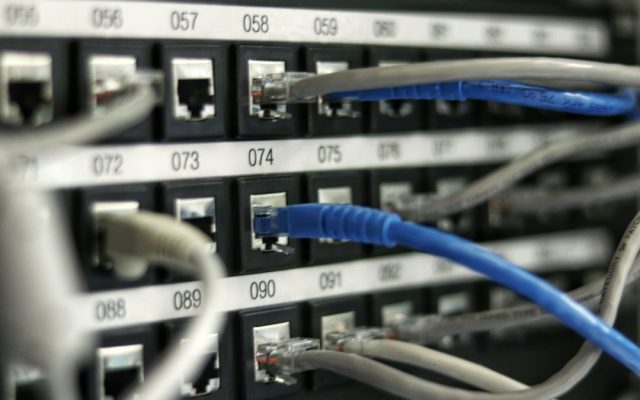

A wireless printer is convenient because it can serve several computers without a USB cable running across the room. It is also a networked device with its own settings, accounts and services. A weak Wi-Fi connection can interrupt everyday work, while an exposed administration page or outdated firmware can create avoidable security risks. A reliable setup therefore needs both a connectivity plan and a basic security review.
Choose the right Wi-Fi network
For a home office, connect the printer to the main trusted network rather than an open public hotspot. In a small business, ask the network administrator whether printers should use a dedicated printer network or VLAN. A separate segment can limit which devices communicate with the printer and make access rules easier to manage.
Do not use a guest network simply because it is easy to find. Many guest networks intentionally block communication between wireless clients, which can prevent computers from discovering the printer. If the printer must be reachable by staff, the network should be configured to permit only the necessary printing and management traffic.
Confirm Wi-Fi compatibility before setup
Check the printer manual for supported Wi-Fi bands and security modes. Some older models support only 2.4 GHz, while newer routers may combine 2.4 GHz and 5 GHz under one network name. If discovery fails, verify that the printer and computer are on networks that can communicate. Do not disable router security as a shortcut.
Place the printer within reliable range of the access point and away from thick walls, metal cabinets and equipment that can interfere with radio signals. If the printer is used throughout the day in a fixed office, Ethernet may provide a more stable connection than Wi-Fi. Wireless is convenient, but it is not always the best option for a high-volume shared device.
Use a safe installation process
Install the printer using its control panel, the manufacturer’s official application or the Windows add-printer workflow described in the manual. Confirm the printer name and network before accepting the setup. If the device uses Wi-Fi Protected Setup, follow the router and printer documentation and disable the feature afterward if it is not needed.
Once connected, print a network configuration page if the model supports it. Record the IP address or hostname and check that the printer remains visible after the computer and router restart. For a shared office printer, consider a DHCP reservation so its address stays consistent without manually assigning an address outside the router’s range.
Protect administrator access
Many printers include a web interface for changing network, scan and security settings. Change the default administrator password to a unique one and store it in an approved password manager. If the printer supports separate user and administrator accounts, avoid giving every user full administrative access.
Keep the administration interface on the internal network. Do not forward its management ports from the public internet. Remote support should use an approved VPN or device-management service rather than direct exposure of the printer. Disable unused services such as legacy remote administration protocols, direct file transfer or wireless features that the organization does not require.
Keep firmware and cloud services under control
Printer manufacturers may release firmware to address reliability issues or security weaknesses. Check the official support page for the exact model, read the release notes and install updates during a quiet period. Do not interrupt power while firmware is being written. For a managed fleet, coordinate the update with IT so network settings and print queues remain consistent.
Cloud printing and companion apps can add useful functions, but they also introduce accounts and online data flows. Before enabling a cloud service, review the privacy notice and understand what document information is processed. Do not send confidential records through an unapproved service. Remove old user accounts and scan destinations that are no longer required.
Improve everyday reliability
Give the printer a clear name that includes its location, especially when several devices appear in Windows. Keep the router firmware current and place the printer where it receives a stable signal. If jobs pause intermittently, compare the printer’s network status with the computer’s connection before reinstalling drivers. A signal-strength problem is not solved by repeatedly changing printer software.
For offices, document the printer’s model, IP address, firmware version, network segment and support contact. This small inventory helps staff identify whether an outage affects one device or the entire network. Test printing from more than one authorized computer after any router or firewall change.
Wireless printer security checklist
- Use a trusted or dedicated printer network, not an open guest network.
- Confirm the printer’s supported Wi-Fi bands and security modes.
- Change default administrator credentials and restrict management access.
- Disable network services that are not required.
- Keep firmware current and avoid public internet exposure.
- Review cloud-service privacy and remove obsolete accounts or scan destinations.
- Record network details and test printing after configuration changes.
A secure wireless printer should be easy for authorized users to reach and difficult for everyone else to manage. Start with a suitable network, protect the administration interface and keep a record of changes. Those simple habits improve both reliability and security.
Reading time: 5–6 minutes.