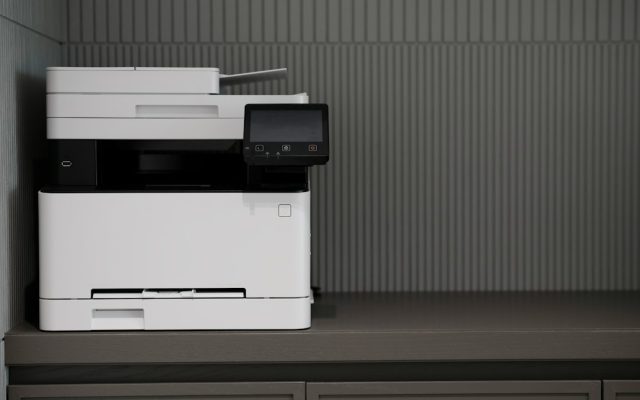
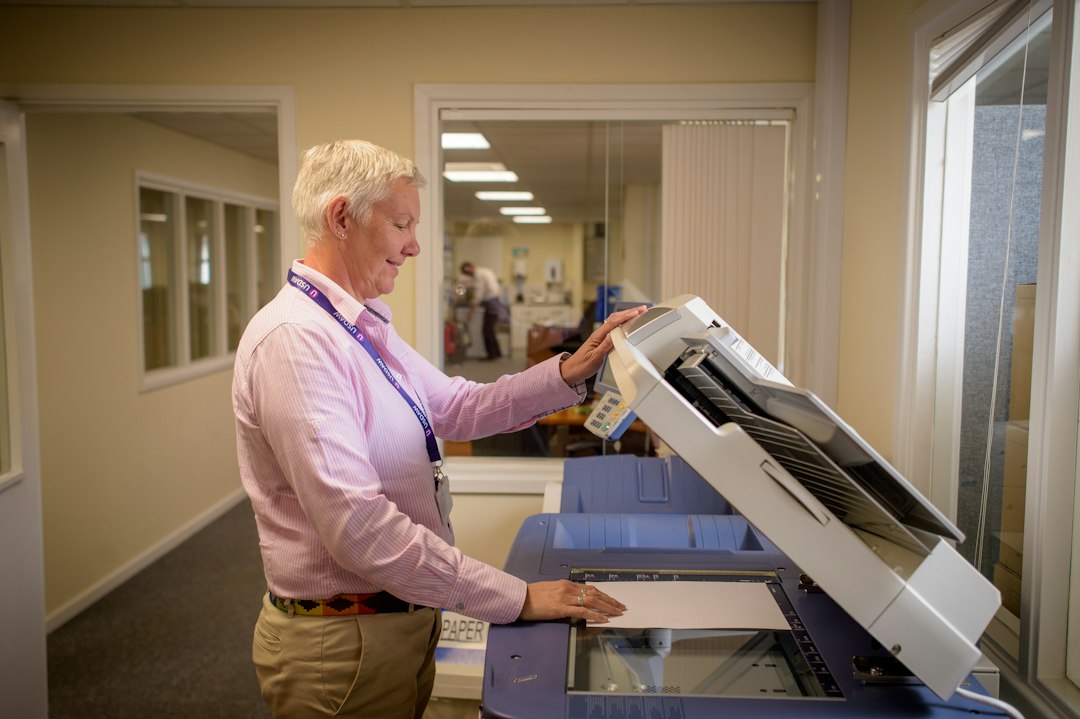
Printer maintenance is no longer limited to paper, ink, toner and moving parts. Connected printers increasingly rely on companion applications and cloud services that can add document-processing features after a device has been purchased. Canon’s October 2026 announcement of its Connected Value Platform is one example: the cloud-based platform combines generative AI with imaging technology to extend selected home and office printing products.
What the new AI features are designed to do
Canon introduced the platform with a Web Print Optimizer for selected PIXMA inkjet models. The feature analyzes web content and reformats it for printing, removing clutter such as advertisements and excess whitespace. Canon also announced a Content-Based Naming feature, planned for late November 2026 on PC, that is intended to analyze scanned documents and suggest descriptive file names.
These tools illustrate a broader shift: some improvements can arrive through software rather than a new printer mechanism. That can make an existing device more useful, but availability is not universal. Canon’s announcement specifies supported models and service requirements, and regional availability can differ. Owners should check the official product page for their exact model and country before expecting a feature to appear.
Check the service and model requirements
Before enabling a cloud feature, confirm the printer model, application version, account requirements and any consumable restrictions. Some services require a current companion app, account registration or genuine supplies. Review whether the feature is available in your region and whether it works with the computer or mobile operating system you use.
Do not install an application from an advertisement or an unfamiliar download site. Use the printer manufacturer’s official support page or the app store linked from its documentation. If a feature is missing, update the supported app first and then check the device compatibility list rather than repeatedly resetting the printer.
Think about document privacy
AI-based document processing may involve sending content or document information to an online service. Before using it for invoices, identity documents, medical forms, contracts or confidential business records, read the service’s privacy notice and your organization’s data-handling policy. Understand what information is processed, whether it is retained, and which account controls access.
For sensitive material, a local workflow may be more appropriate. A printer’s ability to connect to a cloud service does not mean every document should be sent through it. In an office, ask the administrator to review the service before staff enable it on shared devices.
Keep the printer’s basic maintenance routine
Software enhancements do not replace physical care. Follow the maintenance schedule in the exact model’s user guide. Keep paper dry and flat, avoid overfilling trays and use the paper type specified for the job. Dust the exterior with a soft, lint-free cloth and never spray liquid directly onto the printer. Only clean user-accessible areas and components identified by the manufacturer.
For inkjet models, run a nozzle check or alignment procedure when print quality indicates it is needed. Repeated cleaning cycles can consume ink, so avoid running them as a daily ritual. For laser printers, allow hot components to cool and follow the manual when replacing toner or handling the paper path. Do not touch imaging surfaces unless the instructions specifically permit it.
Review firmware and network settings
Connected features make firmware and account security more important. Check the manufacturer’s support page for updates and read the release notes before installing. Use a stable power supply and do not interrupt a firmware update. In a managed office, coordinate the timing with IT so the update does not disrupt print queues or scanning workflows.
Change default administrator credentials, remove accounts that are no longer needed and disable network services the organization does not use. Do not expose the printer’s administration interface directly to the public internet. If the printer stores scan destinations or job history, review those settings and apply an appropriate retention policy.
Test after every change
After enabling a new application feature or installing firmware, print a short test page and check text, images, color and paper handling. Test scanning and file naming separately. Confirm that the printer returns to Ready status and that other users can still access shared queues. If an update changes a setting, document the new value so it can be restored if necessary.
A practical maintenance checklist
- Check model and regional eligibility before enabling AI features.
- Review privacy terms before processing confidential documents online.
- Install apps and firmware only from official manufacturer sources.
- Keep paper, consumables and user-accessible surfaces in good condition.
- Review administrator access and unused network services.
- Test printing and scanning after software or firmware changes.
The most useful printer technology is the technology that fits the job without creating new reliability or privacy problems. Treat AI features as optional tools, keep the device maintained according to its manual and verify every change with a simple test.
Reading time: 5–6 minutes.